Color Craft·November 2026·6 min read
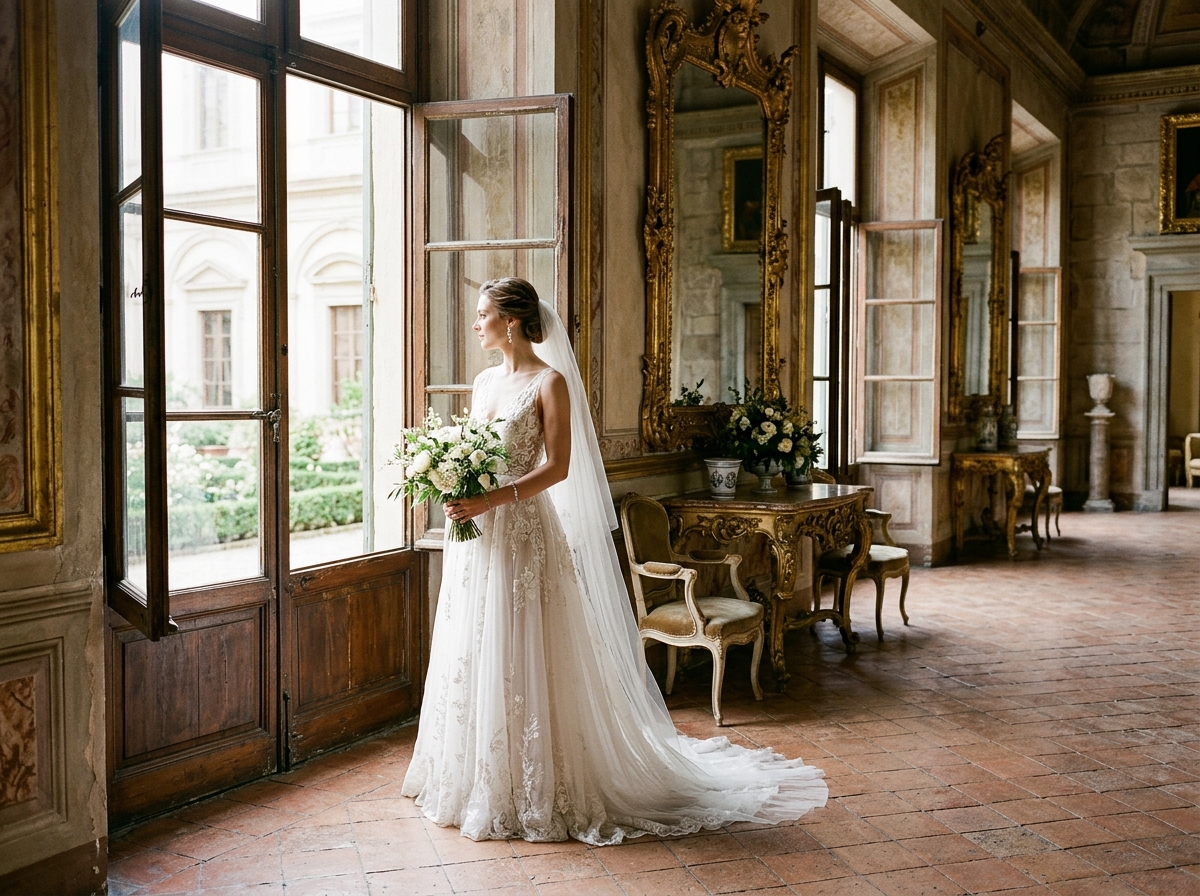
Mastering White Balance for Filmic Skin Tones Across Mixed Reception Light
Why your tint slider matters more than temperature when moving from golden hour portraits into tungsten-lit banquet halls.
Read GuideJOHNEIKO RESOURCES · JOURNAL & DOCUMENTATION
Color science essays, hybrid photo-video workflows, Lightroom masking techniques, and step-by-step installation guides for every creative platform we support.
CRAFT NOTES & TUTORIALS
Why your tint slider matters more than temperature when moving from golden hour portraits into tungsten-lit banquet halls.
Read Guide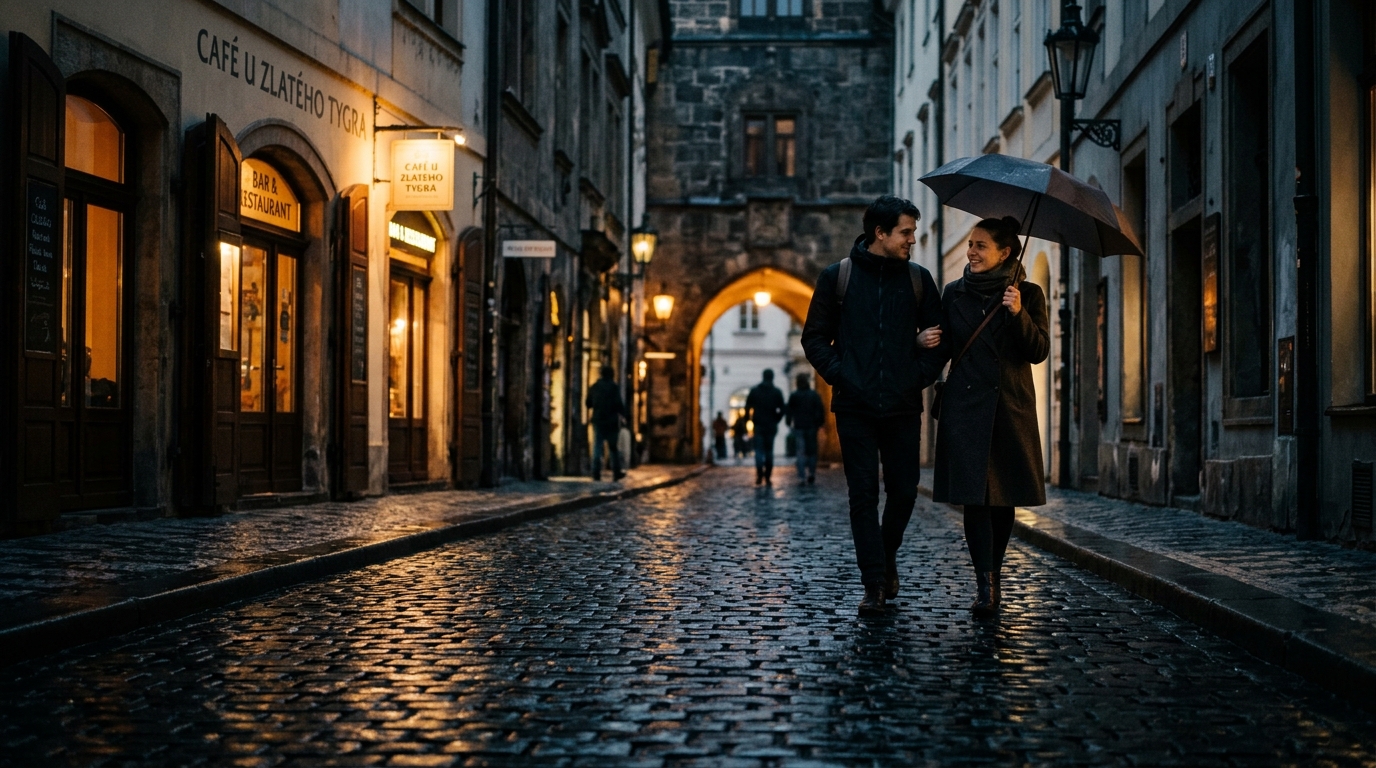
A practical DaVinci Resolve & Premiere Pro node tree for keeping Sony S-Log3 and Canon C-Log footage aligned with your still gallery.
Read Guide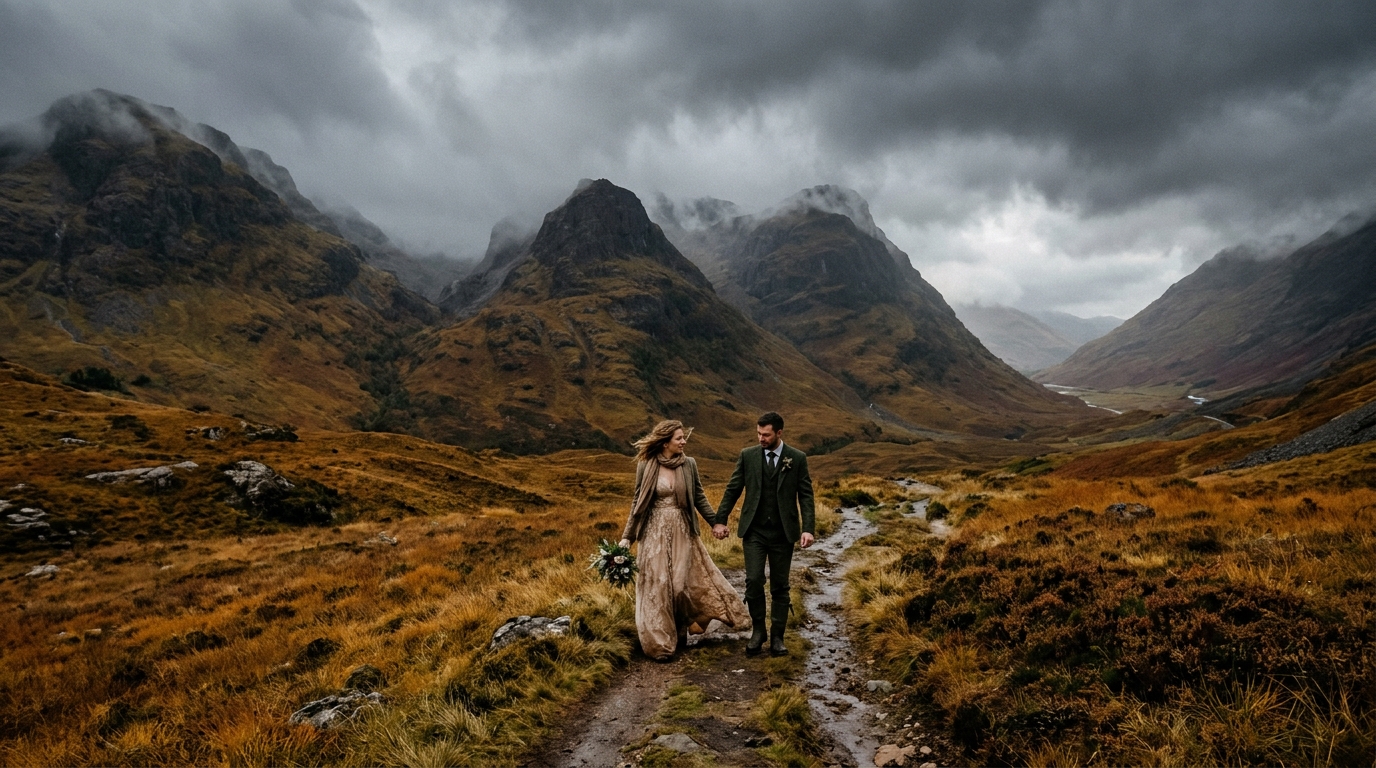
How separating your color foundation from contrast dynamics and AI lighting masks lets you deliver 700 cohesive images in under two hours.
Read Guide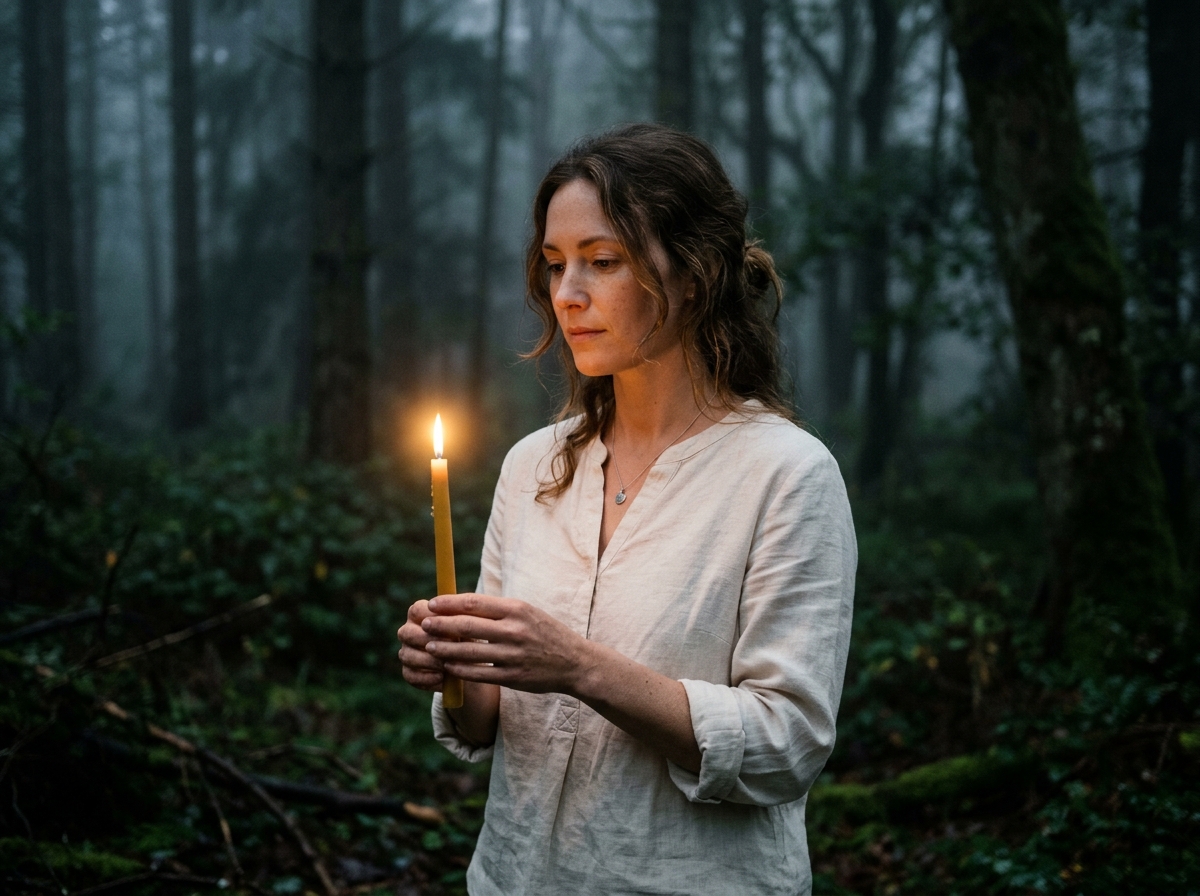
Practical luminance thresholds for subject separation, gentle background glow, and natural skin retouching inside Lightroom Classic.
Read GuideSTEP-BY-STEP SETUP · PRESETS & 64-POINT LUTS
Select your editing platform below for exact import steps. Presets install directly from your intact .ZIP file on desktop; Video LUTs unzip into standard .CUBE files for any NLE.
LIGHTROOM & ACR INSTALLATION
FILE NOTE: Import the intact .ZIP archive directly — do NOT unzip first.
Recommended desktop workflow. Lightroom Classic imports both .XMP Develop Presets and custom Creative Profiles automatically in a single click.
Save the JOHNEIKO_*.zip file to your Downloads folder or an external backup drive. Keep the outer .ZIP compressed.
In the top menu bar, choose File → Import Develop Profiles and Presets (or click the + icon at the top of the Presets panel on the left).
Lightroom automatically unpacks both the preset folder and the underlying Creative Profile. Restart Lightroom once if a custom profile does not immediately appear.
Open any RAW photograph in Develop. Your new JOHNEIKO VISUALS collection will appear in the left Presets panel and inside the Profile Browser.
STUDIO TIP: Use the Preset Amount slider at the top of the Presets panel (0–200%) to dial any grade up or down while keeping skin tones anchored.
NEED INSTALL ASSISTANCE?
Quick answers for the four most common Lightroom & NLE setup questions.
STILL STUCK?
Lost your order link or need help configuring Creative Cloud sync? Our human support specialists reply within one business day.